📝 Pre-requisites before getting started with review requests
1️⃣ ✅ To send Google reviews links please integrate GMB first 👉 (See Guide) , Or if you would like to use a 3rd party review link please click here
2️⃣ 🔄 Review requests will need to be enabled (toggled on) in the sub-accounts settings (See Guide)
3️⃣ ✏️ (Optional) Customize your outbound (SMS/Email) review messaging (See Guide)
4️⃣ 📍 Ensure your Google Business Profile is fully integrated and connected to the correct location. (See Guide)
🤔 Why You Need Reviews
If you’re a business owner, then you probably already know that the answer to why your business or service would need reviews is “because it helps people find out more about your business.”
And there's more...
1️⃣ 💸 To increase sales and conversions
Happy customers = persuasive social proof. Positive reviews build confidence and increase conversions.
2️⃣ 🔍 To improve SEO
Search Engine Optimization thrives on reviews. More reviews = better rankings on Google and Bing.
3️⃣ 🤝 To build trust with visitors
A trustworthy brand = a likable brand. Too many negative reviews? That’s a trust killer.
4️⃣ 💬 To provide a better customer experience
No reviews = less information. Help customers make informed decisions with reviews and ratings.
📤 Ways to Send Review Requests
There are three ways to send review requests from within the CRM:
1️⃣ Quick Actions – Manual
2️⃣ Workflow Action – Automated
3️⃣ Reputation Tab – Manual
1️⃣ ⚡ Quick Actions: (Manual)
Quick Actions are shortcuts available in the top left above the sidebar. One of those actions is Sending a review Request.
📌 Note: When sending a review request, the person who is signed in will be the one listed as the sender of that message.
If you are looking to send a review request from the contact's assigned user, please use the Workflows action "Send Review Request" to send a request on behalf of the assigned user
2️⃣ ⚙️ Workflow Action: (Automated)
To automate the review request process within a workflow:
➡️ Add the "Send Review Request" action
➡️ Select the channel: Email/SMS

3️⃣ 🌟 Reputation Tab: (Manual)
From the sidebar:
➡️ Go to Reputation > Requests
➡️ Send individual review requests manually
➡️ Track all the review requests sent
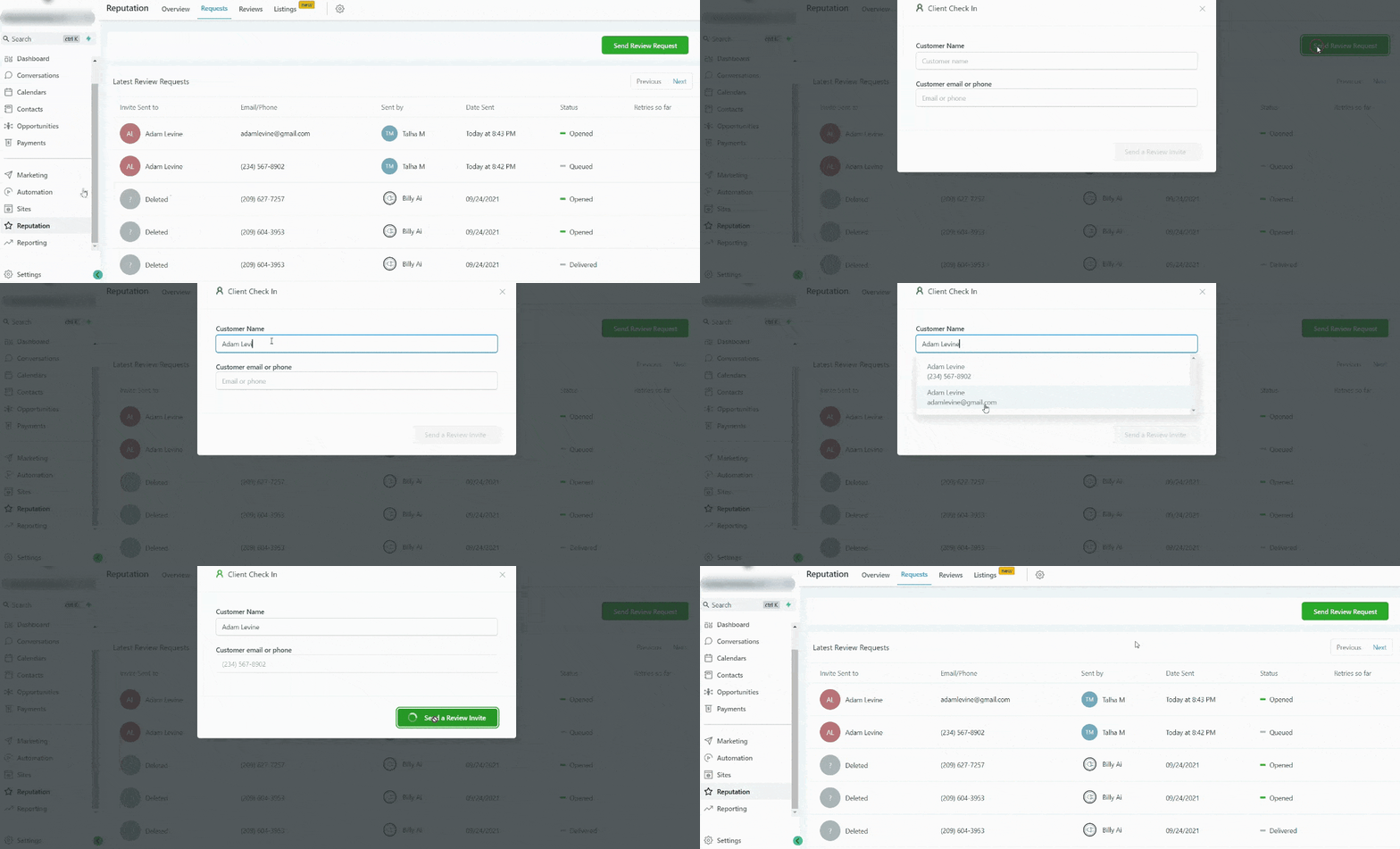
🛠️ Review Request Statuses Explained
- Queued: Request created but waiting to be sent (might be delayed due to a queue or scheduled for later).
- Sent: Request has been sent.
- Delivered: SMS delivered confirmed by Twilio. (Email delivery is not confirmed by Mailgun.)
- Failed: Couldn’t be delivered. This might happen due to issues like an invalid phone number.
📧 Important:
If using another SMTP integration, log in with the user email that matches the SMTP integrated email. The system sends review requests using the user login email as the sender.
Now you're ready to start collecting reviews like a pro!
🌐 How to Integrate Your Google Business Profile (formerly GMB) into the CRM
🏁 How to set up Google My Business
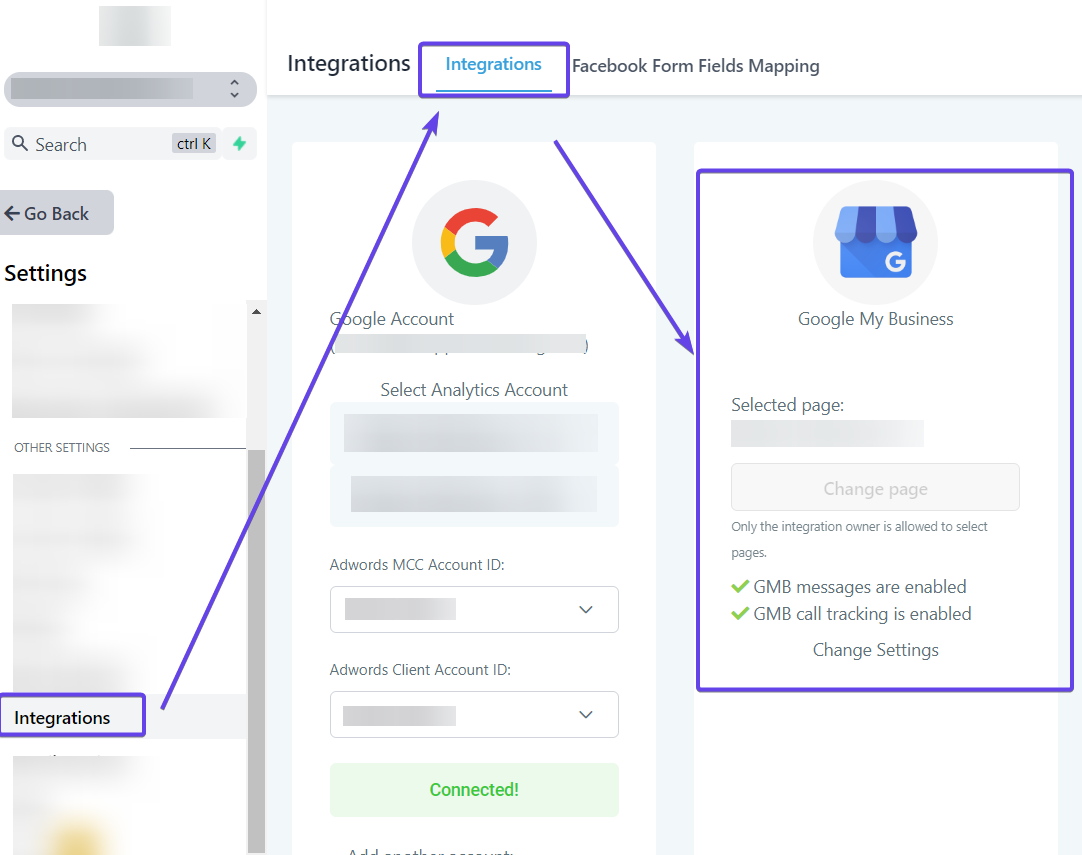
1️⃣ You have a GMB page connected in Settings > Integrations:
⚠️ Please Note:
You will need to make sure that a Google Account that has admin access to your GMB profile is integrated into your Sub-Account so that you can then integrate the GMB Page.